Upload your tenant export. See compliant savings in seconds.
We normalize Dynamics 365 SKUs, validate attach prerequisites, and flag safe savings so you can act fast.
Upload license export
Drag your Microsoft Admin Center CSV here or pick it below. We normalize every SKU, validate attach prerequisites, and highlight compliant savings opportunities.
Drop a CSV anywhere in this panel or click the button above to choose one.
We only need the `Object Id` and `Licenses` columns.
Export guide for license analysis
Step 1: Export user data from Microsoft 365 Admin Center
- Log in to the Microsoft 365 Admin Center with your administrator account.
- In the left-hand navigation pane, navigate to Users > Active users.
- Above the list of users, click the three dots (...) button, then select Export users. This will download a CSV file.
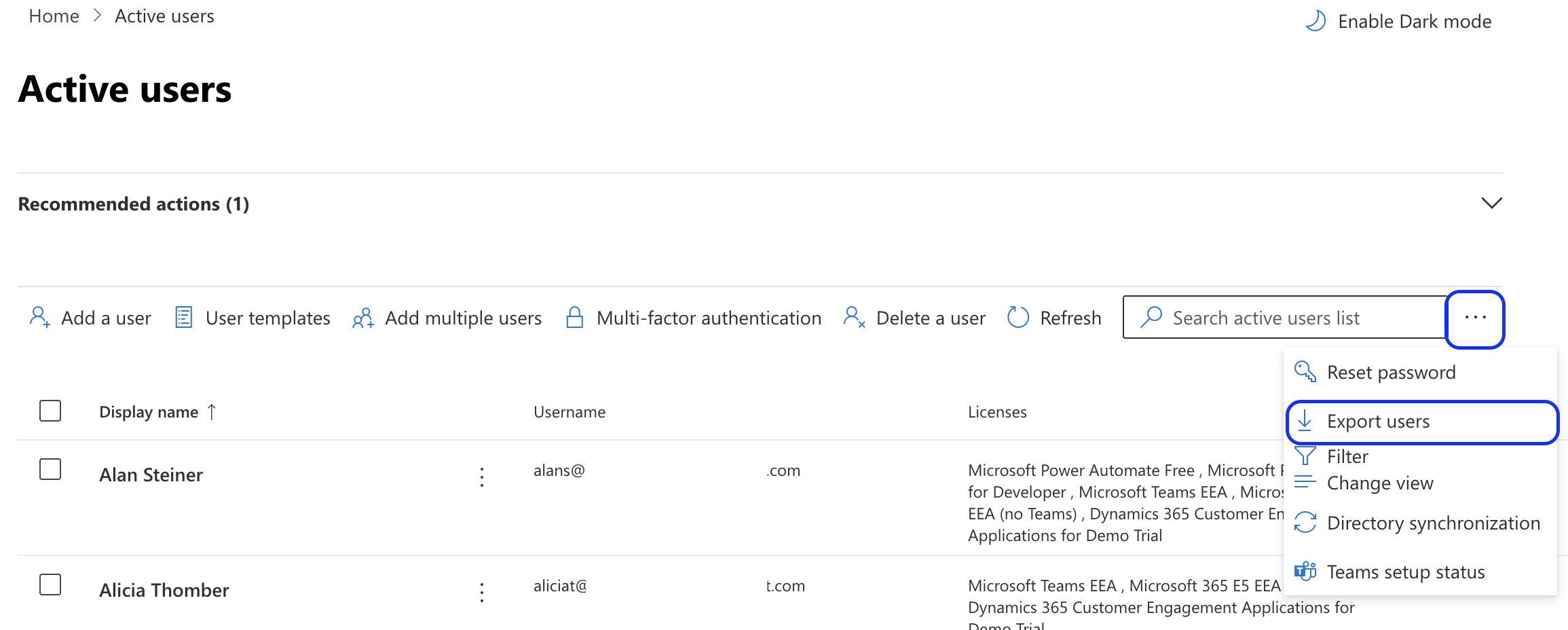
- Save this file to a location you can easily access.
Note: Microsoft periodically updates the Admin Center interface. The location of the “Export” button might change slightly.
Step 2: Anonymize data (optional)
The downloaded file contains potentially sensitive user information. If you wish to anonymize the data before uploading, focus on retaining just the necessary fields for license analysis. Its important to keep Object ID and Licenses, you can trim the file to just those fields:
- Open the CSV in Excel, Google Sheets, or another editor. Create a backup copy that keeps
Object IDandDisplay Name(or UPN) so you can remap results later. - In your working file, keep only the
Object IDandLicenses(or “Assigned licenses”) columns. - Delete every other column to reduce sensitive data before uploading.
- Ensure licenses inside the column are separated by semicolons (
;). - Save the trimmed spreadsheet as a CSV before uploading to D365 License Checker for analysis.