I had a scenario where a dashboard needed to be shown more permanently on a screen, while the data should of course also update “realtime”. This is not something D365 CE / model-driven apps provide as standard functionality.
However, I found that it can be done relatively easily with a web resource, which is then hidden from being shown on the dashboard.
The simple approach is to add code that reloads the page at a fixed interval. This can also be done with, for example, a Chrome extension, but I found that it was better to control it with code placed directly on the specific dashboard.
How to do it
1. Create an HTML web resource
Create an HTML web resource in Dataverse. The web resource contains JavaScript that reloads the dashboard at a fixed interval.
<!doctype html>
<html>
<head>
  <meta charset="utf-8" />
  <script>
    (function () {
      const refreshMinutes = 15;
      const refreshMs = refreshMinutes * 60 * 1000;

      window.setTimeout(function () {
        window.top.location.reload();
      }, refreshMs);
    })();
  </script>
</head>
<body style="margin:0; padding:0; font-family:sans-serif; font-size:11px;">
  Auto-refresh active
</body>
</html>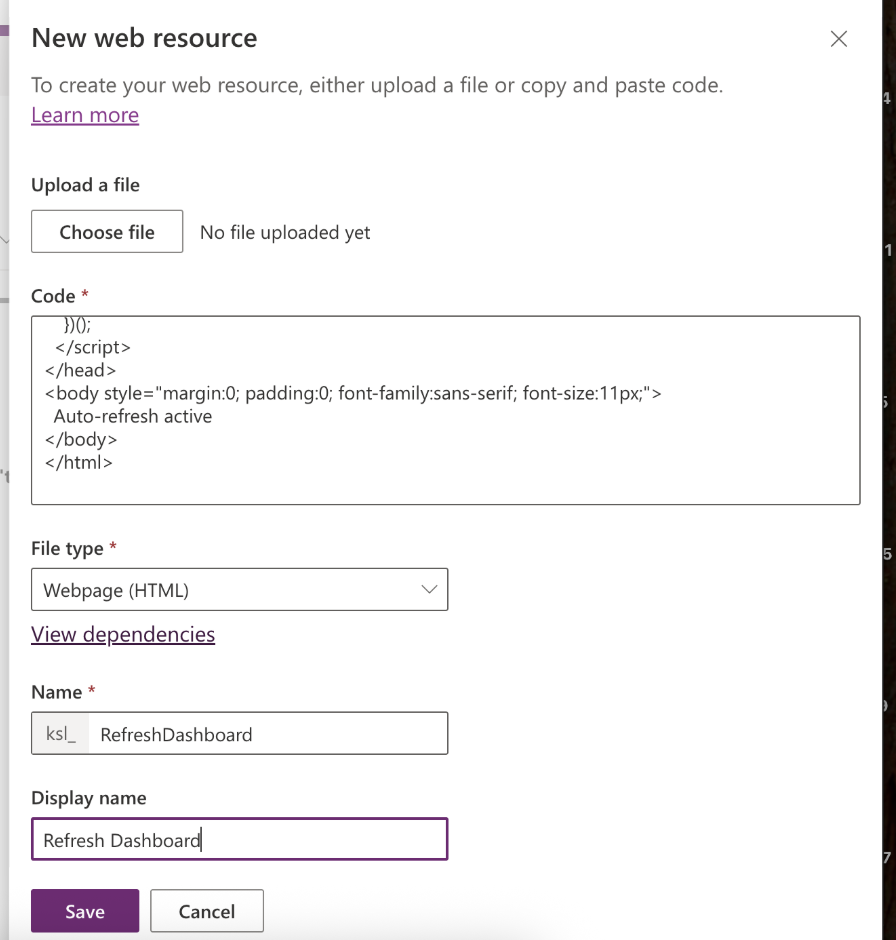
Example of how the web resource is configured as an HTML web resource.
2. Change the refresh rate
Change refreshMinutes to the desired interval.
3. Add the web resource to the dashboard
Add the web resource to the desired dashboard.
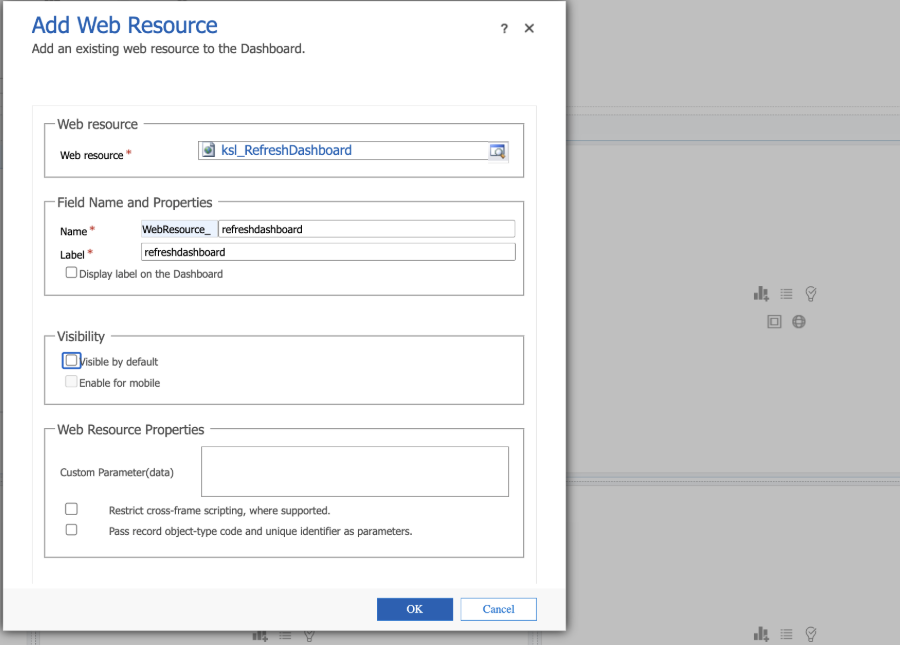
Example of how the web resource is added and configured on the dashboard.
Be aware
- This is a “workaround”. A better solution will often be to create a Power BI dashboard.
- A frequent refresh rate can create load and a poor user experience, so maybe set it to every 10 or 15 minutes.
- The entire app window reloads, which users will of course clearly notice.
- Depending on how this dashboard is shown and used, there may be some licensing considerations to be aware of. These are of course not entirely clear, since this is not “intended usage”.